
Links Block
Add, Style, and Customize Links on Your Beacons Page
Add a Links Block to your Beacons page and customize each link — layouts, headlines, animations, scheduling, countdowns, redirects, and click analytics.
Quick answer: A Links Block turns your bio into a list of clickable buttons that send visitors to your website, socials, products, or anything else you want to promote. Add one from + Add Block > Links, then customize each individual link with its own layout, headline, animation, schedule, countdown, or redirect.
Unlike a basic link-in-bio list, every link inside a Beacons Links Block can be individually scheduled, put on a countdown, animated, set to instantly redirect page visitors straight to it, and tracked with its own click analytics — no separate app or integration required, and headlines/descriptions can be AI-generated per link.
Link Customization Options at a Glance
Option | Icon | What it does |
|---|---|---|
Animate | Star | Draws attention to your most important link |
Schedule | Calendar | Sets a future date/time for a link to appear or hide |
Countdown | Timer | Shows a live countdown; link stays inactive until it ends |
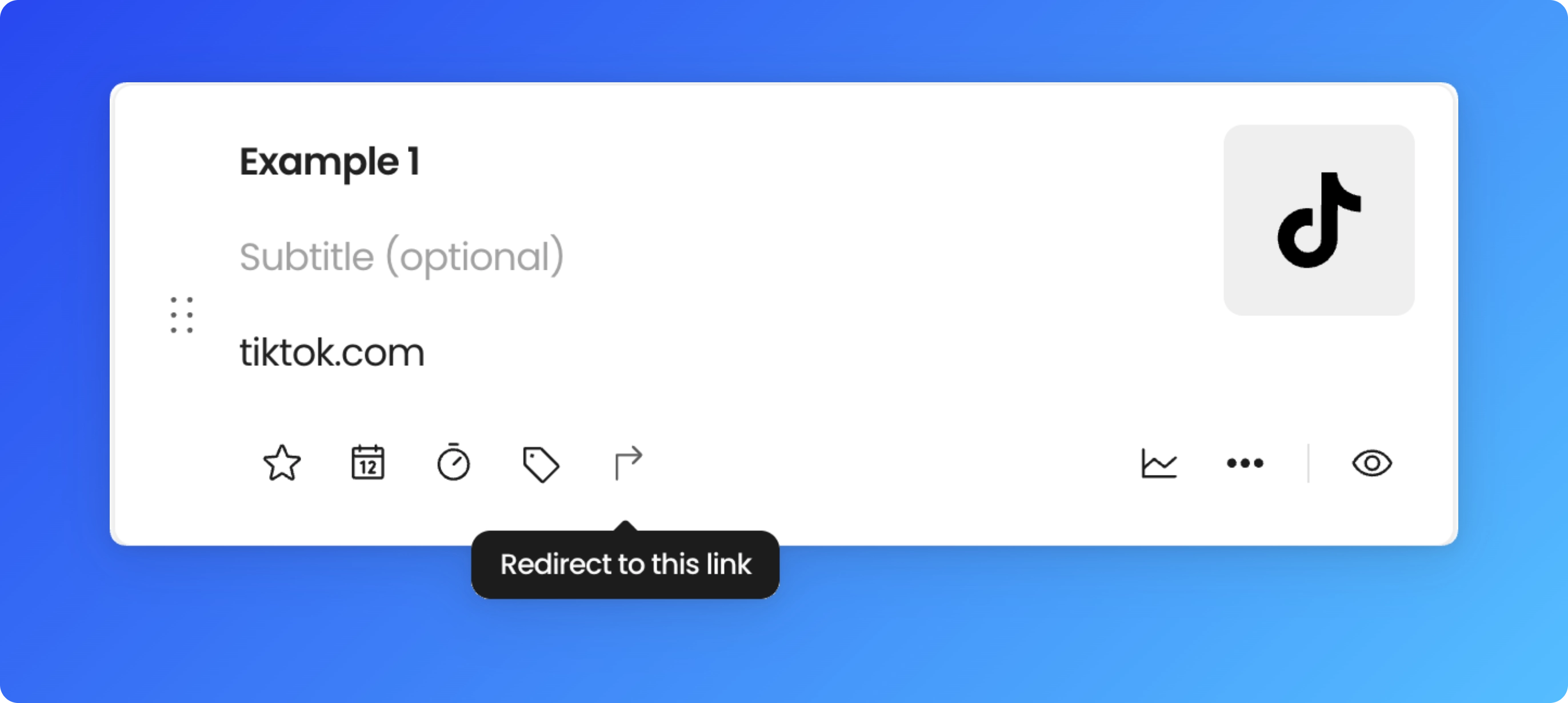
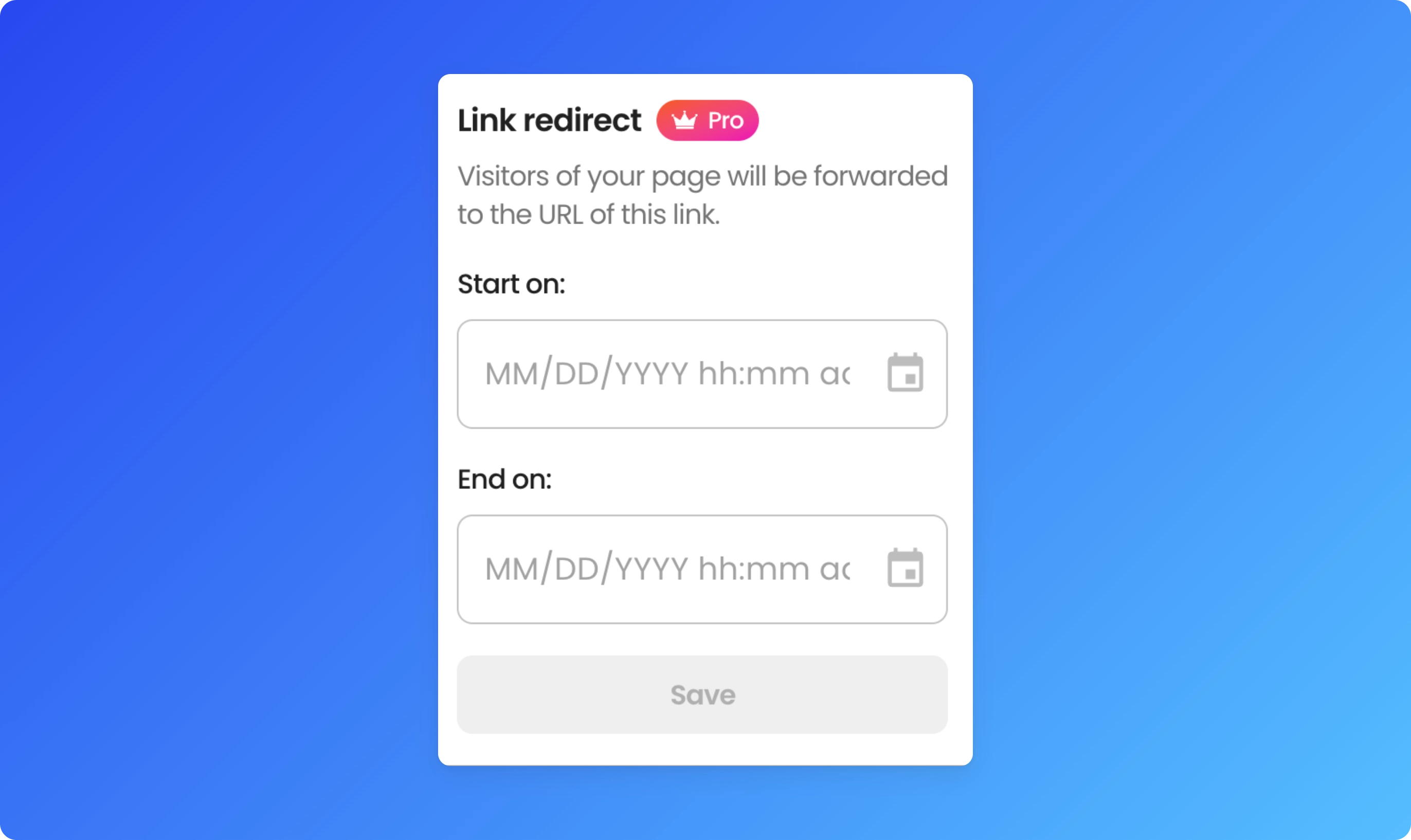
Redirect | Arrow | Pro feature. Instantly sends anyone who visits your page to that one link during a set date range. Only one can be active at a time. |
Discount Code | Price Tag | Visitors tap your link to copy this code,then get taken to your link. |
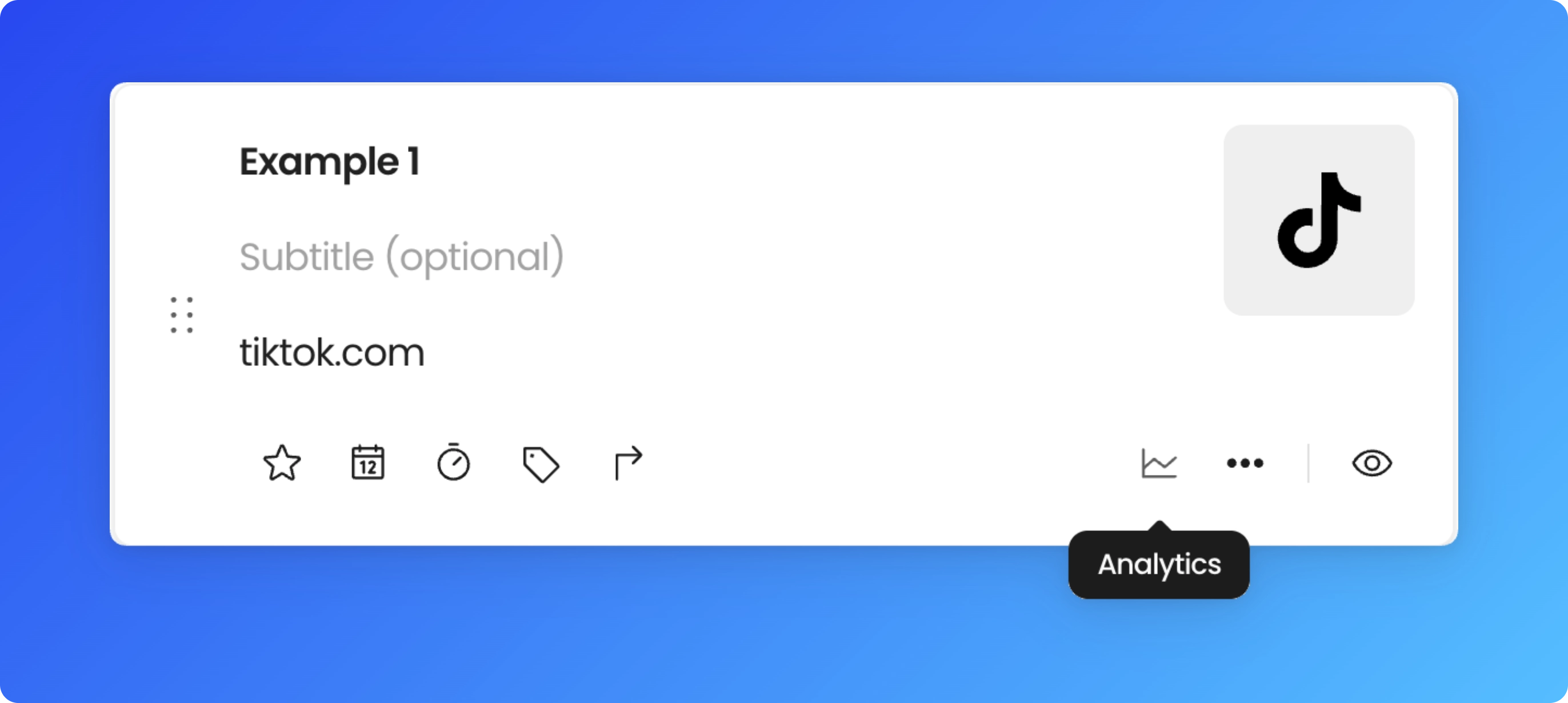
Analytics | Graph | Tracks clicks per link so you can see what's converting |
⬇️ Watch the walkthrough starting at 0:27 ⬇️
How do I add a Links Block to my Beacons page?
Go to My Page | Beacons, click + Add Block, then select Links.
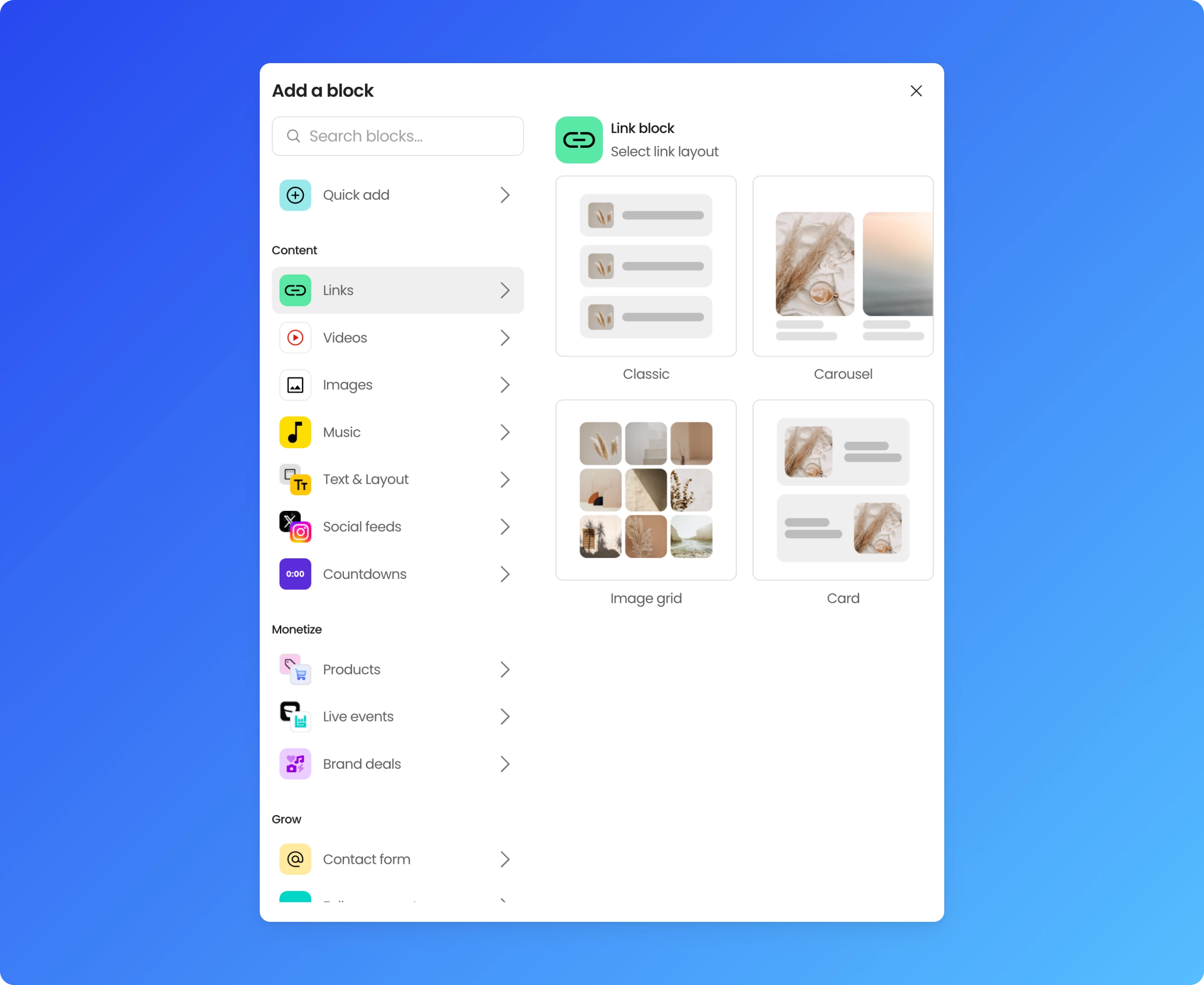
What link layouts can I choose from?
Beacons gives you several Links Layouts to choose from — feel free to click through them and see which fits your page's style. Two quick tips:
Add an image or icon to each link. Links with visuals get noticeably more clicks than plain text links.
Turn on Link Outline for better visibility, especially on busy or colorful page themes.
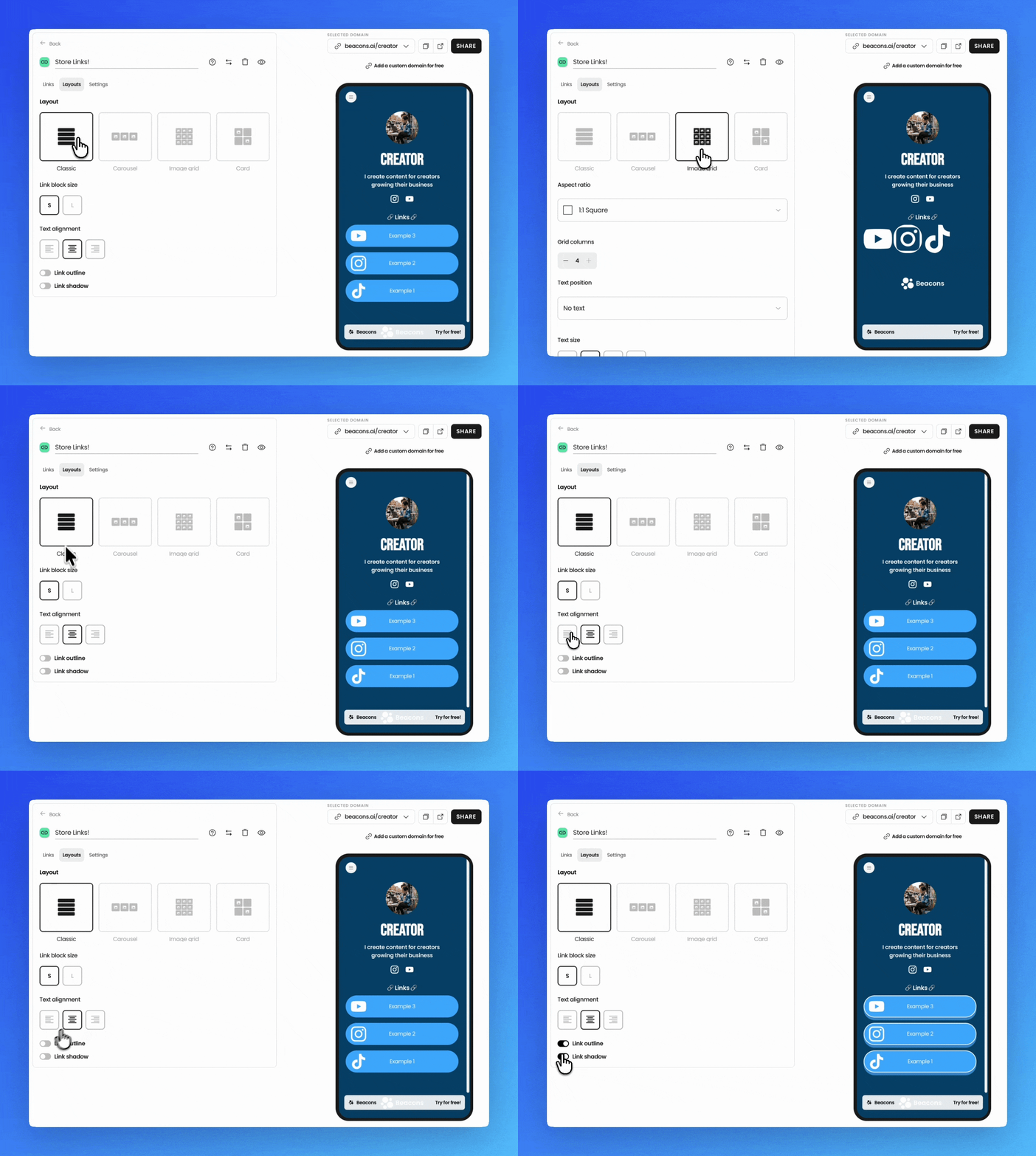
If you're using Classic mode, you can also make individual links collapsible.
Can I make one link stand out as a big image card?
Yes. Any link can be turned into a featured link, which shows it as a large 16:9 image card with the title underneath. This works well for the one thing you most want people to click, like a new drop, your latest video or a main offer.
Click into the link you want to feature.
Turn on Featured toggle:
Can be found by clicking the "..." icon to open up the menu
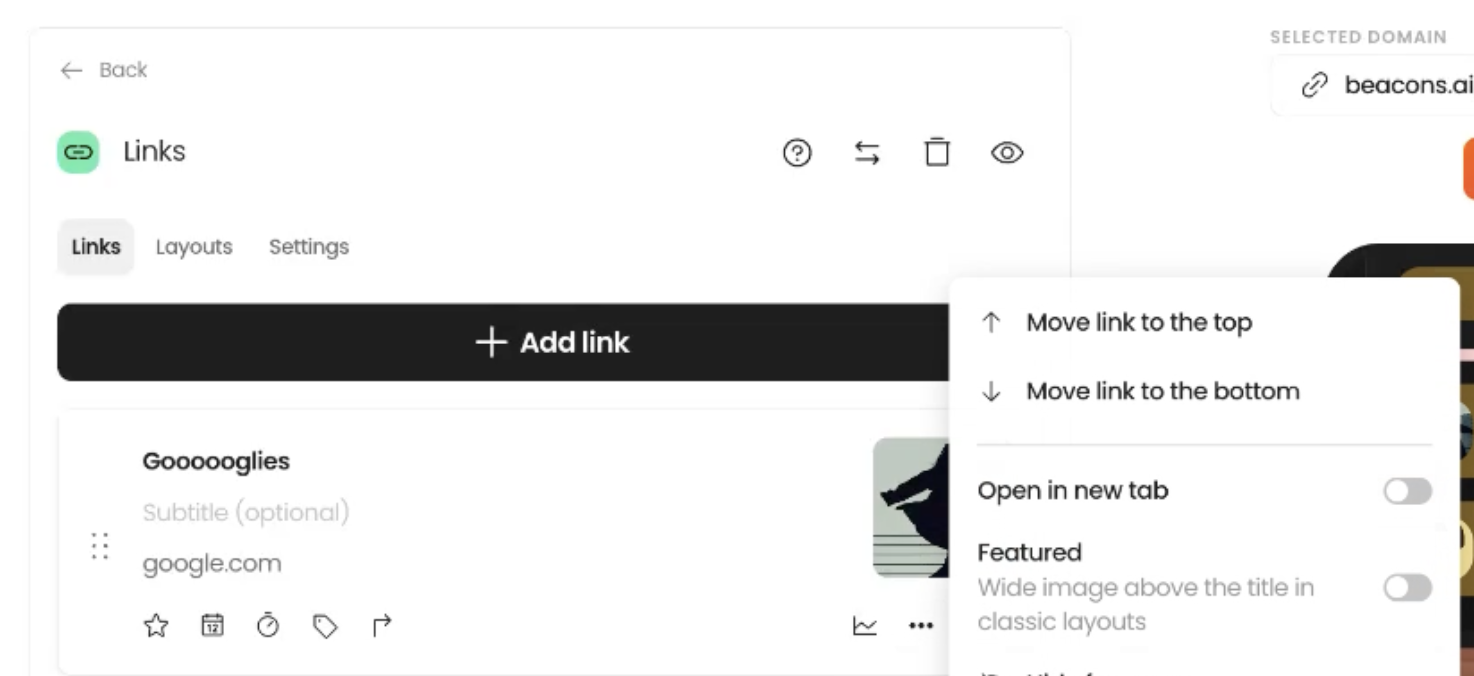
Upload an image, or use the one pulled from the link. Wide, landscape images work best.
How do I crop my link image?
When you add or change a link's image, you can crop it to 16:9 (wide) or 1:1 (square).
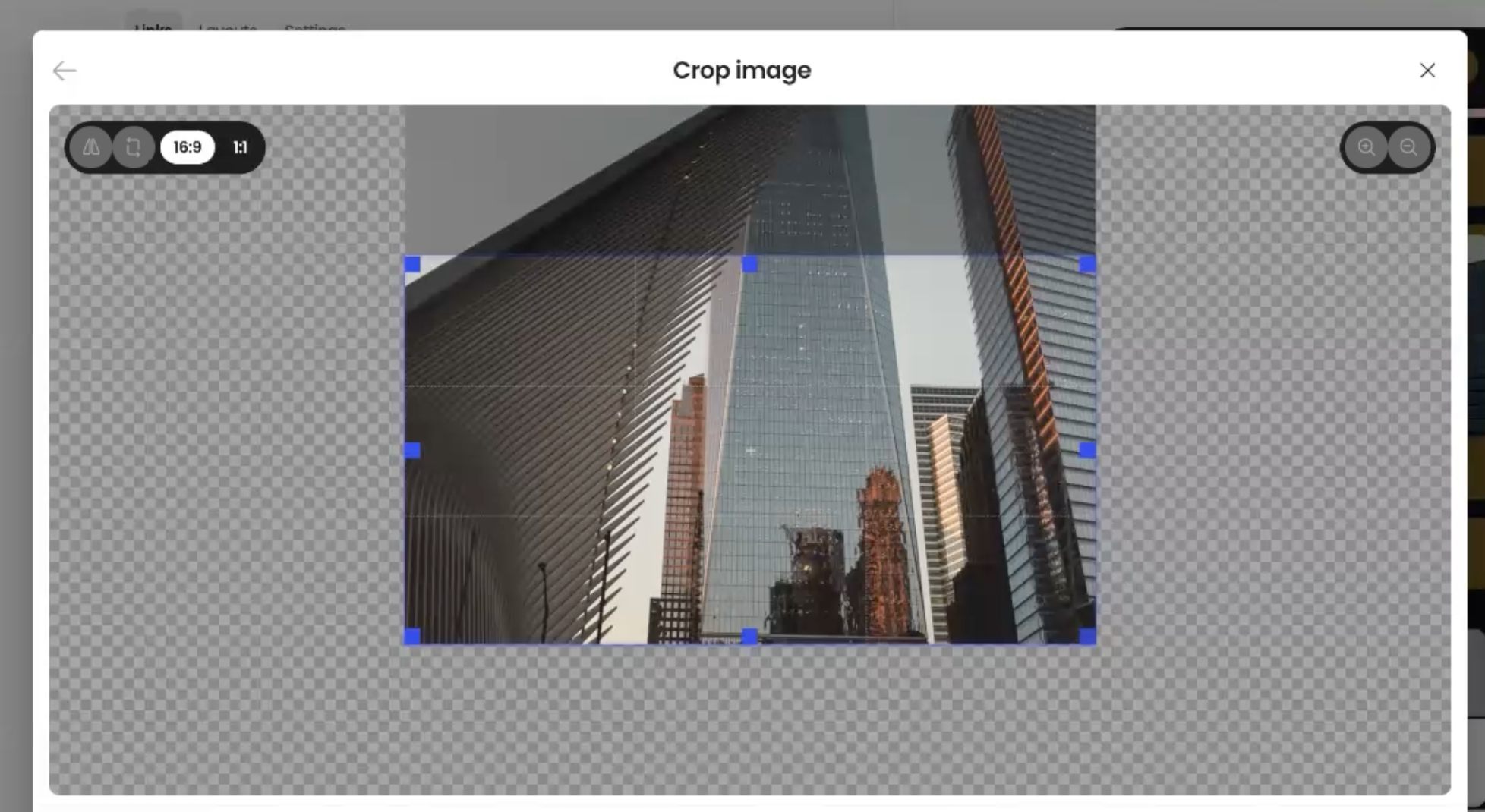
Use 16:9 for featured links, thumbnails and banners.
Use 1:1 for logos, product shots and profile-style images.
Can I add a headline and description to my links?
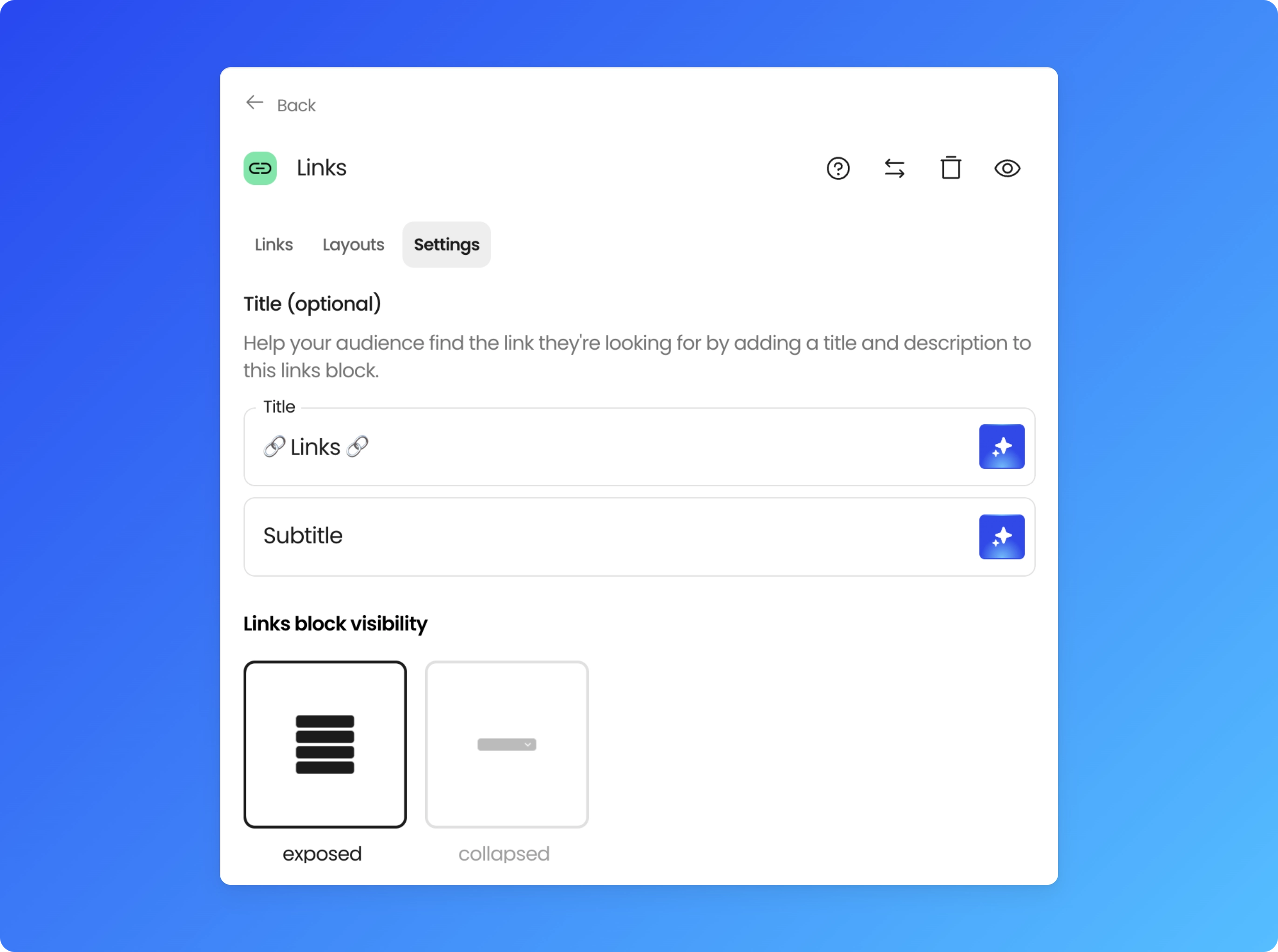
Yes — each link can have its own headline and description, and you can generate both with AI if you'd rather not write them yourself. Under the Settings tab, you can also choose whether your Links Block displays fully expanded or collapses into a drop-down menu, which is useful if you're linking to a lot of destinations and want to keep the page short.
Note: collapsing applies to the whole Links Block as one unit — you can't create separate named sub-groups of links that each collapse independently within a single block. If you want distinct sections (e.g., "Free Resources" vs. "Follow Me"), use separate Links Blocks and give each its own headline.
Customizing individual links
Once a link is added, click into it to see the full set of customization options below.
Can I animate a link?
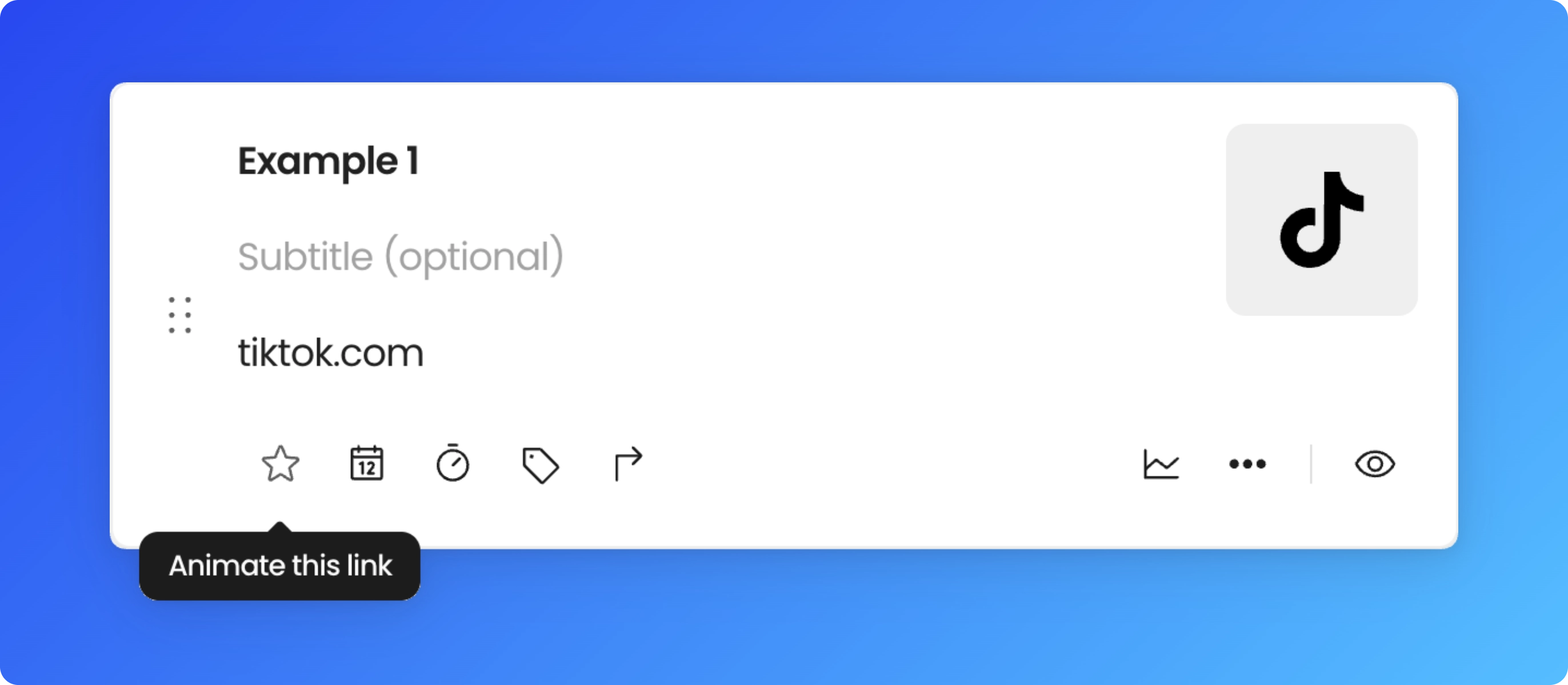
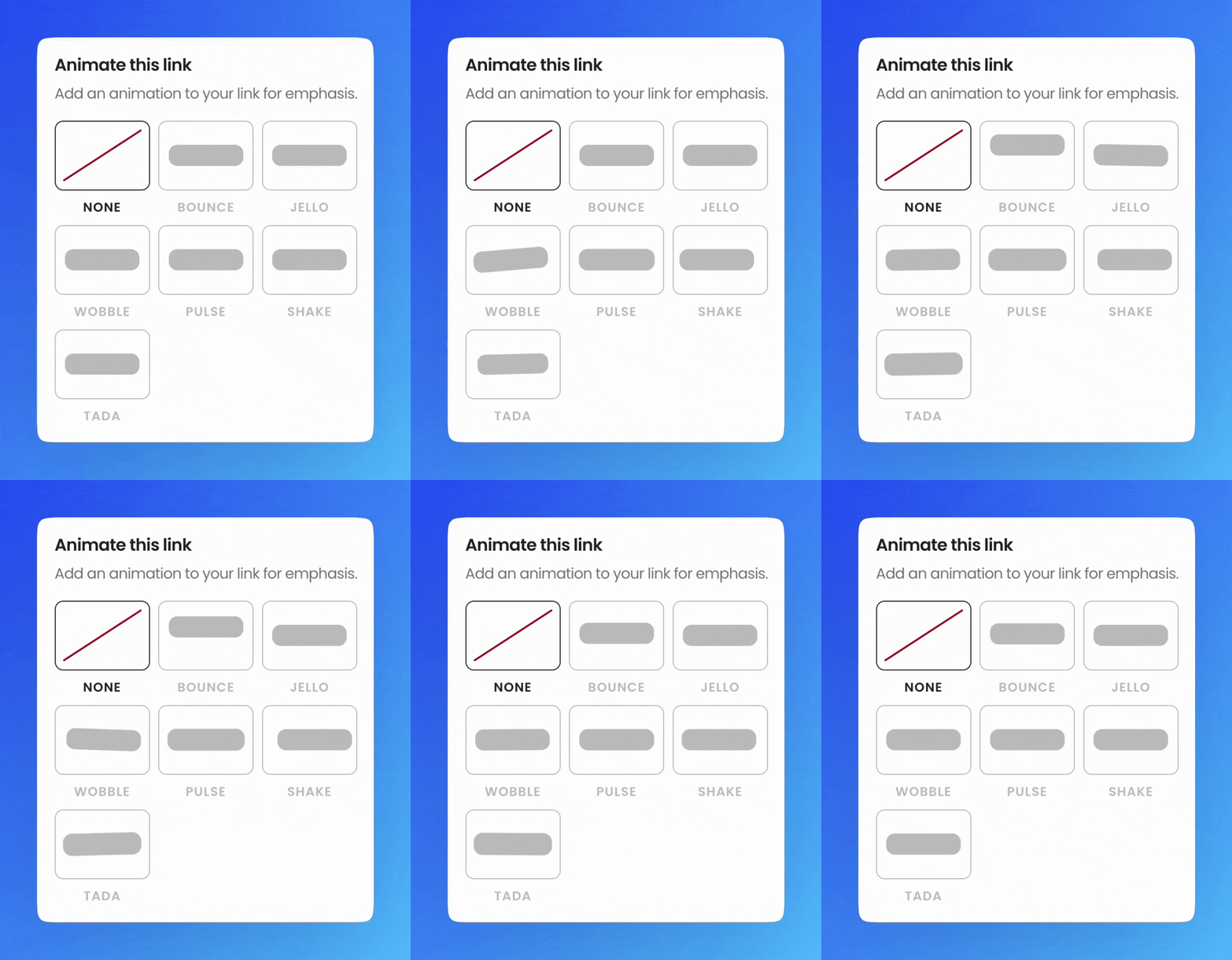
Click the star icon on any link to add an animation. This is a simple way to draw the eye to your most important link — a new drop, a limited-time offer, or whatever you most want visitors to click first.
Can I schedule when a link appears or disappears?
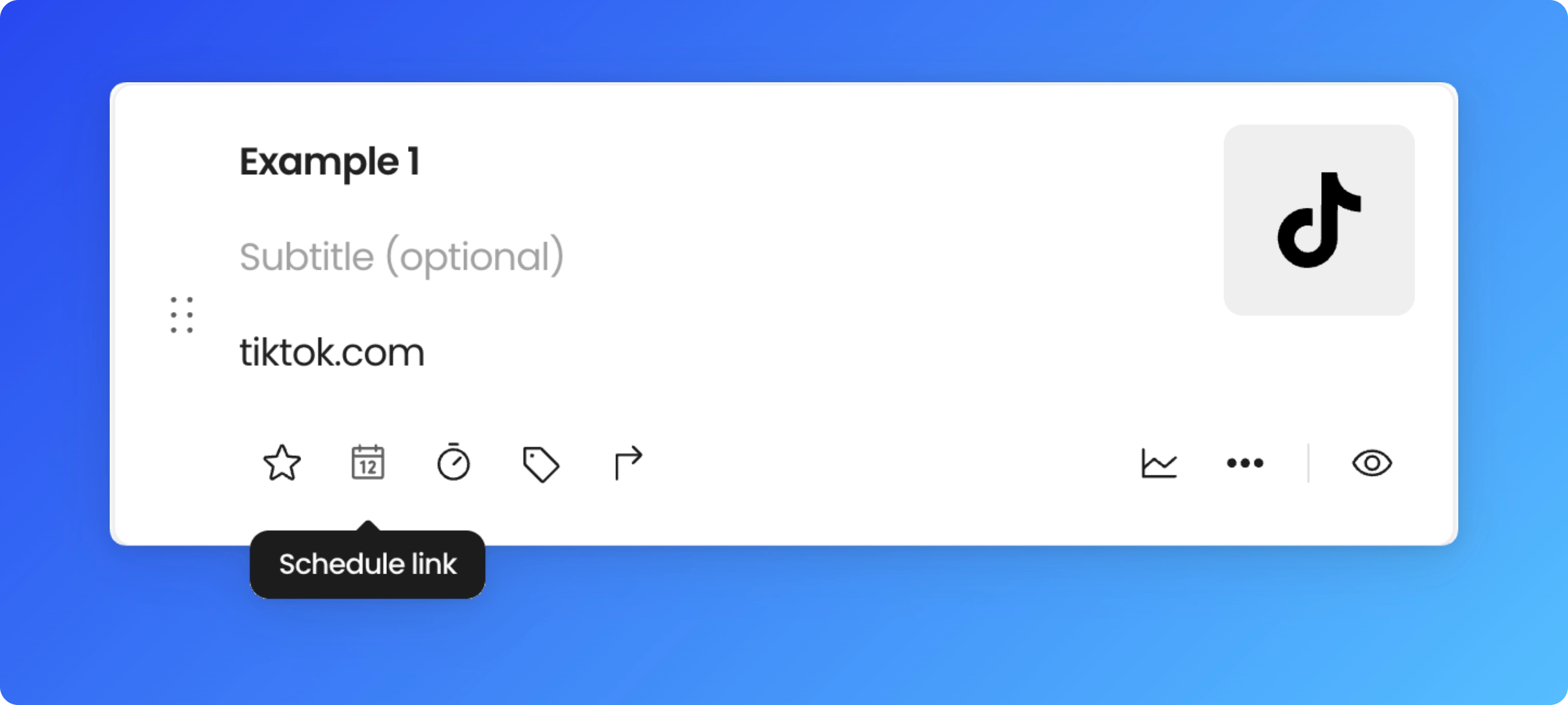
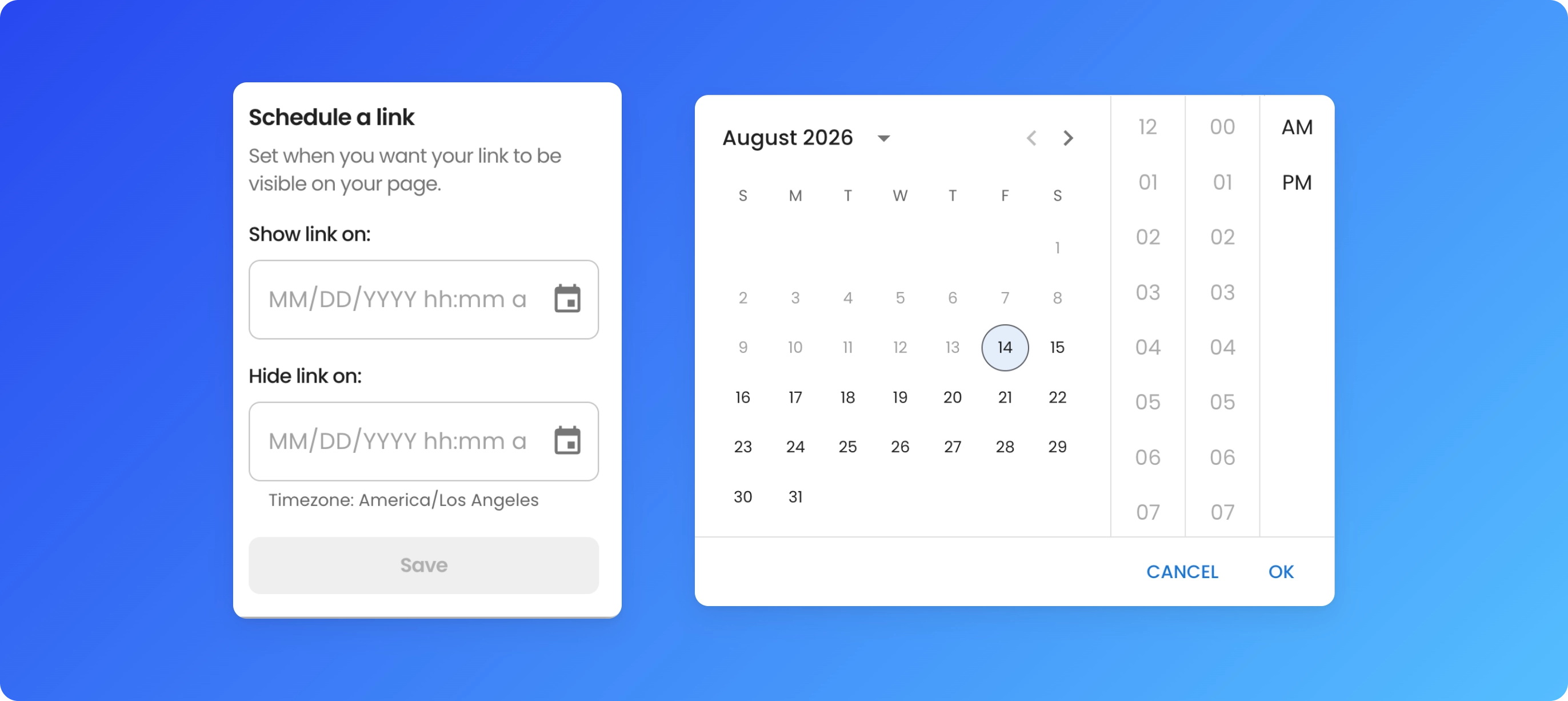
Click the calendar icon to schedule a link's visibility. This is useful for time-boxed content — a link that shouldn't go live until a launch date, or one that should automatically disappear once an offer ends. You can:
Set a future date and time for the link to appear
Schedule a date and time for the link to be hidden
Can I put a countdown timer on a link?
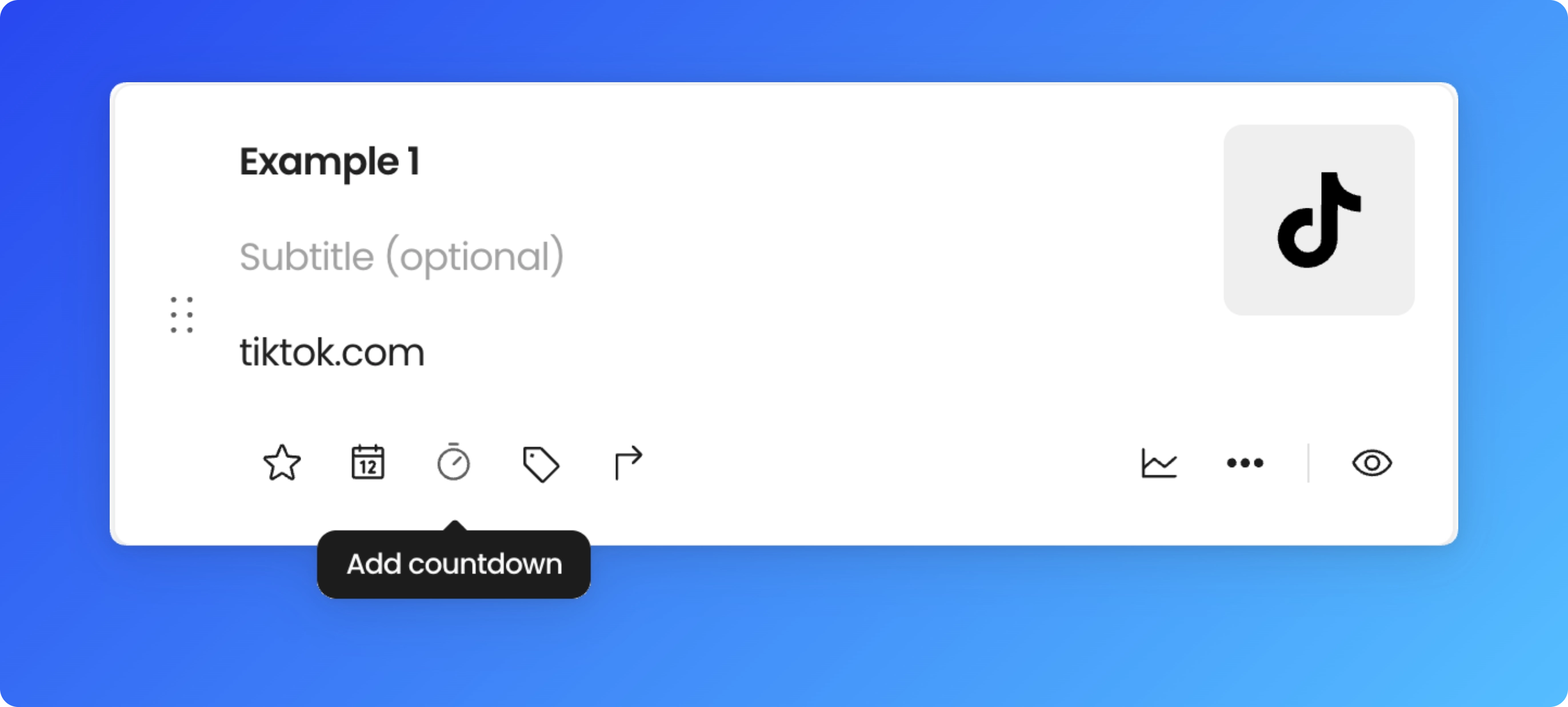
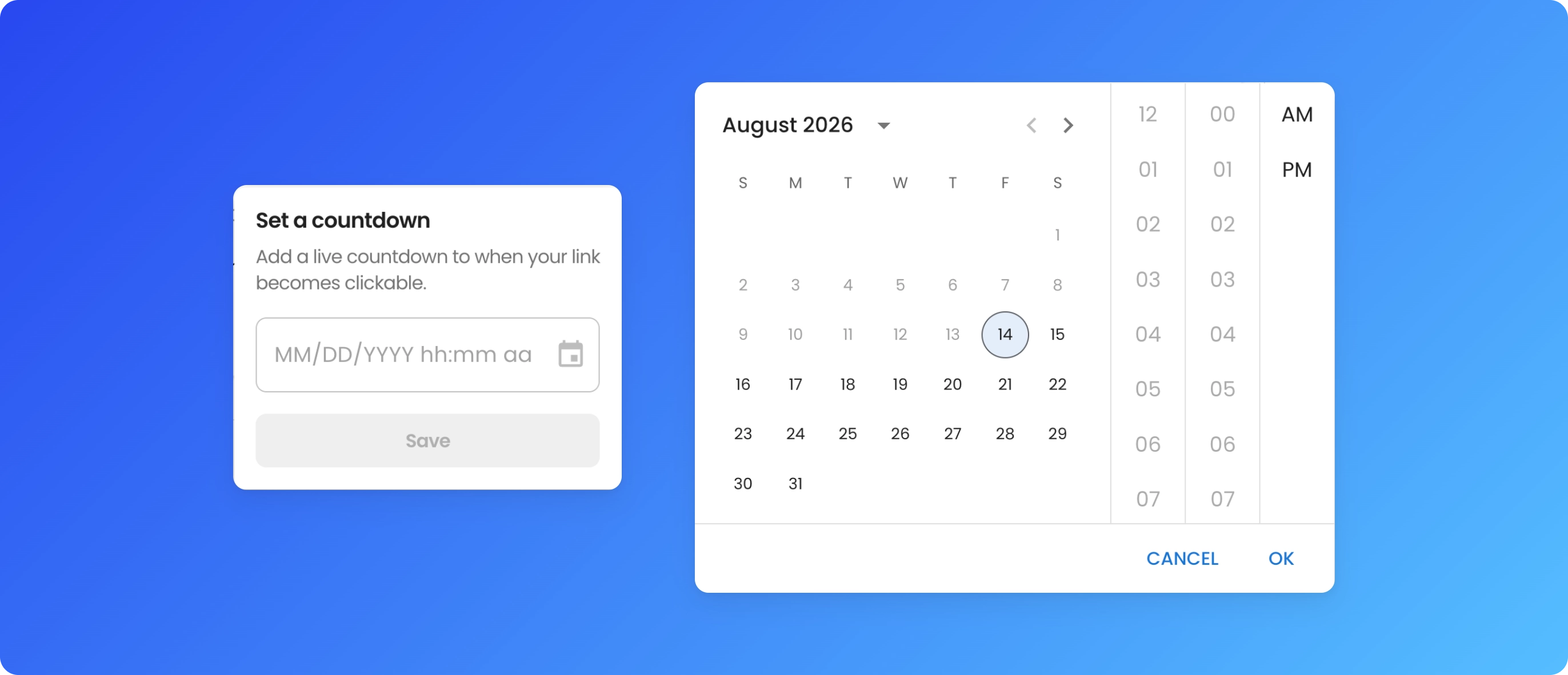
Click the timer icon to set a countdown. Visitors will see a live countdown on the link button itself, and the link stays inactive (clicking does nothing) until the timer runs out. This works well for pre-orders, waitlists, or drops you want to build anticipation around.
Can I add a Discount Code to a link?
Click the price tag icon to attach a discount code to a link. Visitors tap the link to automatically copy the code, then get taken straight to your link's destination — no separate step to find or copy the code themselves.
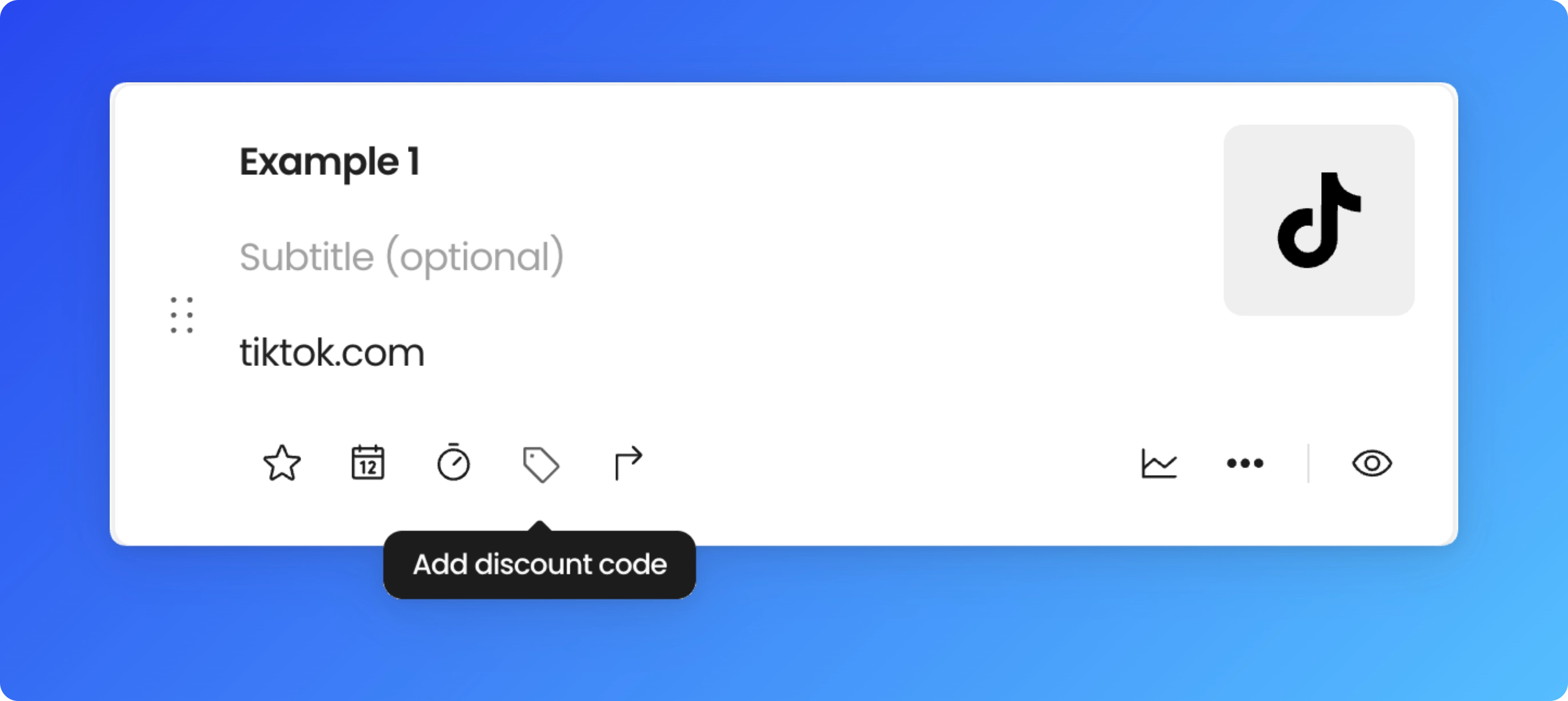
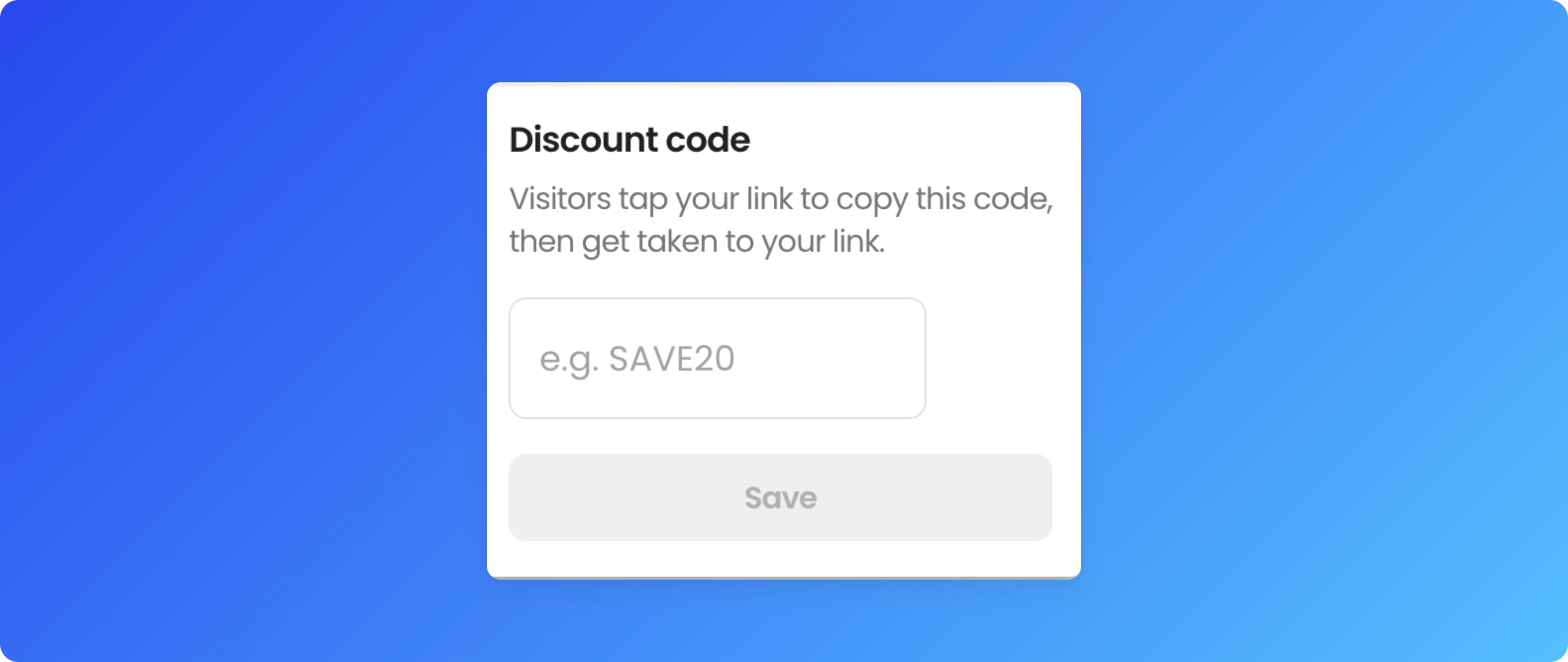
This is useful for affiliate or promo links where you want the code applied with zero friction — the visitor doesn't have to remember or manually copy anything before landing on the offer.
Can I redirect visitors straight to one important link instead of my full page?
Yes, with a Pro plan. Turning on Link Redirect for a link means that during the dates you set, anyone who visits your Beacons page is forwarded straight to that link's destination — instead of landing on your full page. Set a Start on and End on date/time to control exactly when the redirect is active.
Only one Link Redirect can be active at a time. If you try to turn it on for a second link while one is already running, Beacons will tell you which link currently has it (by name) and ask you to turn that one off first.
This is useful when you have one link that matters most for a limited window — a big drop, a time-sensitive announcement — and you want every page visitor to land on it directly rather than needing to scroll and find it.
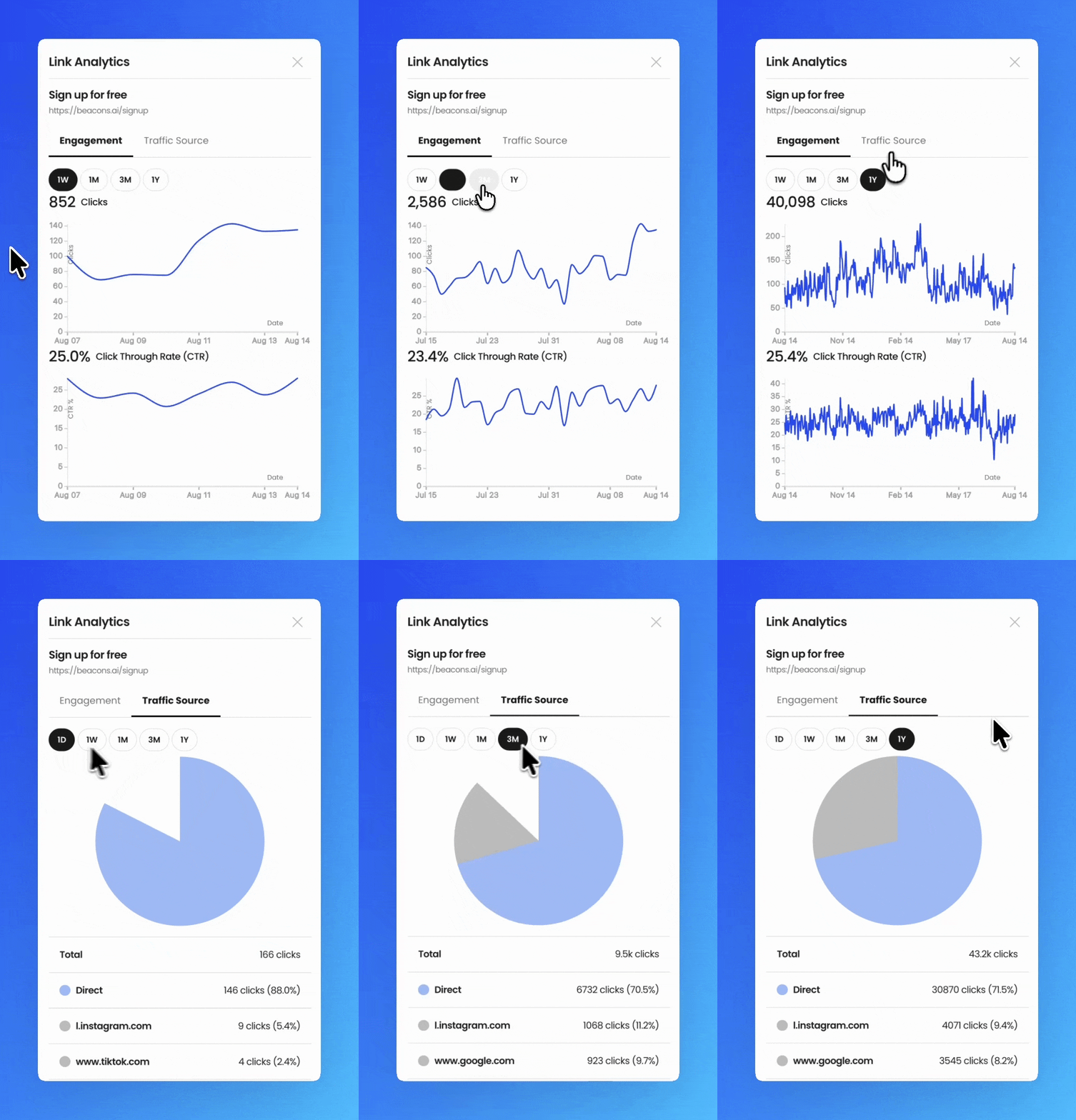
Can I see how each link is performing?
Every link has built-in analytics, so you can see clicks per link and track which of your links are actually converting visitors. Use this to figure out what's working — if one link is consistently outperforming the rest, that's a signal to feature it more prominently or animate it.
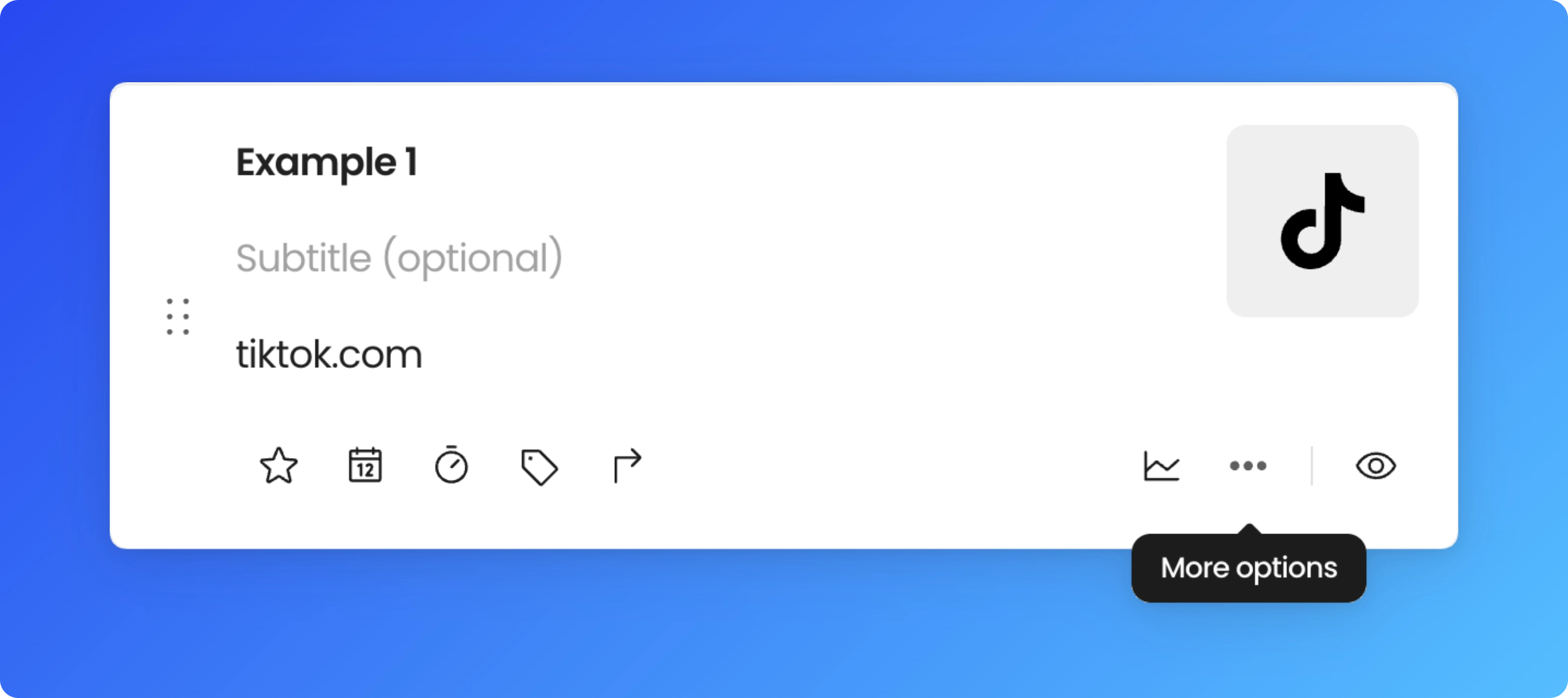
How do I reorder, open in a new tab, hide, or delete a link?
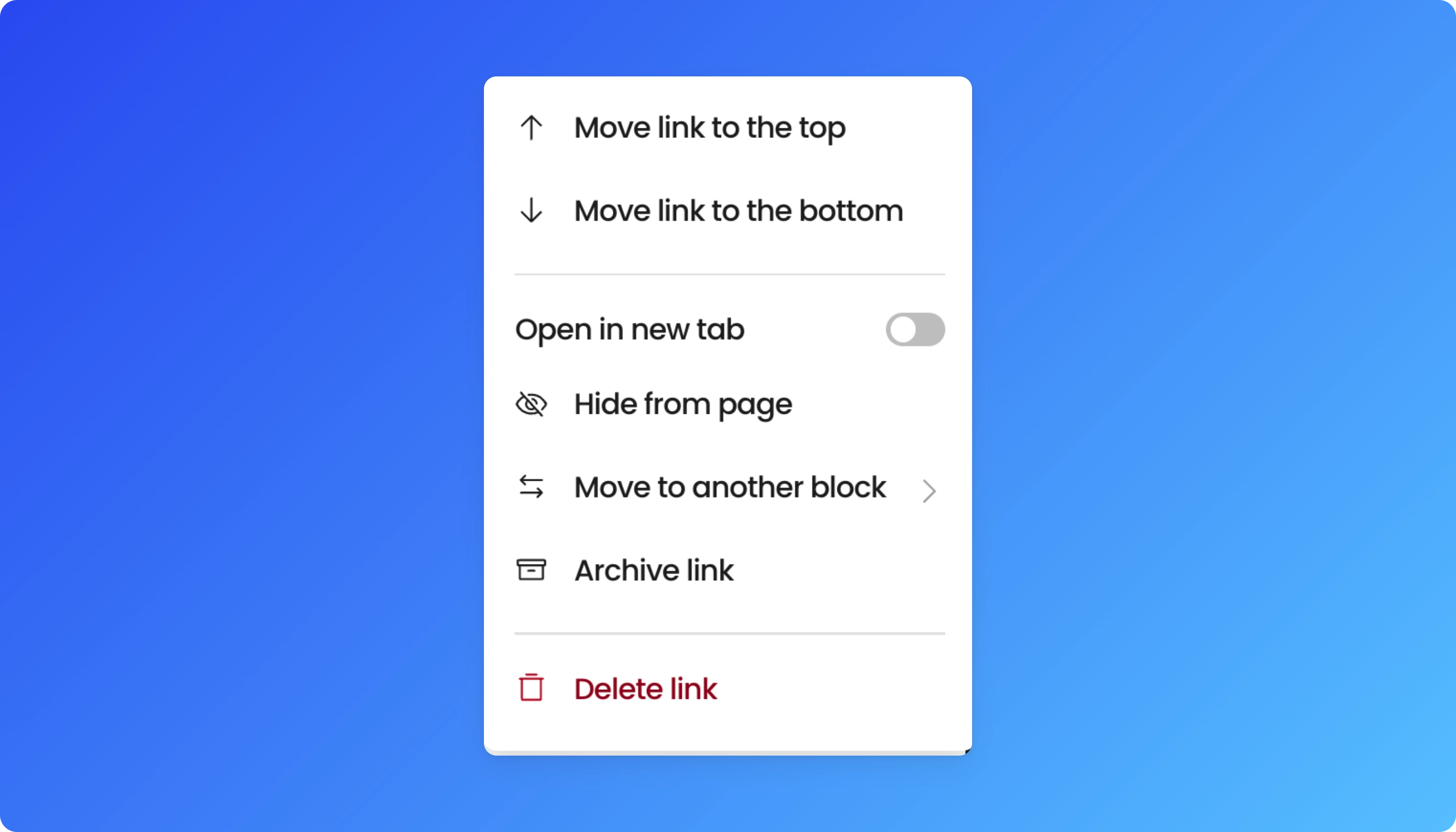
Click the 3 dots (More Options) on any link to:
Move the link up or down
Open the link in a new tab
Delete the link
The toggle on the far right of each link hides or shows that specific link without deleting it.
HERE ARE SOME EXAMPLES:
|
|


FAQ
How is a Links Block different from a basic link-in-bio list?
Each link in a Links Block can be individually scheduled, given a countdown timer, animated, and tracked with its own click analytics — plus, on Pro, one link at a time can be set to instantly redirect every page visitor straight to it for a set date range. All built in, without a separate app or integration. Headlines and descriptions can also be AI-generated per link.
What's the difference between a Links Block and a Text Block?
A Links Block creates clickable buttons that send visitors somewhere else. A Text Block is for on-page writing that doesn't need to link anywhere — a bio blurb, an announcement, or context around your links.
Can I change how my whole page looks, not just one Links Block?
Yes — page-wide styling (block shape, fonts, colors, themes) is controlled separately in Design your Page, and applies across all your blocks, including Links.
Do scheduled or countdown links affect my analytics?
No — analytics track actual clicks only. A link that's scheduled to appear later or is counting down simply won't register clicks until it's active and clickable.
What's the difference between a featured link and an Image Block? A featured link is a clickable card that sends visitors to a destination and tracks clicks like any other link. An Image Block shows a picture on your page and is mainly for display.
Do featured links get their own analytics? Yes. A featured link is still a link, so its clicks are tracked the same way.
Still stuck? Email us at support@beacons.ai.